Appearance
Issuing a Drawing
Freezing a revision, reading the register, and sending a drawing package out to recipients. Issuing is what turns a drawing you are working on into a drawing somebody else can rely on.
Read this first: which editor you are in
ErgoPlanner has two editors. Both can freeze and issue a revision; they do it in different places.
Draw (/draw) | P&ID models (/admin/pid-models) | |
|---|---|---|
| What it holds | A drawing with sheets and areas | A model with drawings (process-area views) |
| Save and version history | Yes | Yes |
| Compare two versions | Yes | Yes |
| Freeze a revision | Yes — Issue (top-right of the canvas) | Yes |
| Drawing register | Yes — its areas appear in the company-wide register | Yes |
| Transmittals | Yes — frozen areas can be added from the Create Transmittal wizard | Yes |
Issuing from Draw. Save the drawing, open the sheet (or highlight the area) you want to issue, and click Issue — the paper-plane button beside Review comments and Revision history at the top-right of the canvas. Pick a purpose:
- For Review freezes a new revision and sets the status to S3 (shared for review & comment).
- For Construction freezes a new revision and sets the status to A (approved).
The open sheet or area is ticked; tick any other sheets or areas of the drawing to issue them in the same go. Each one gets the next revision letter (A → B → C …) and its frozen content is what the server reads from the saved drawing — so Issue stays disabled while you have unsaved changes. A sheet or area can only reach S4, A or AB while its last freeze still matches the drawing; if the drawing has changed inside it since, issue it again first. The drawing's autosave version history is a separate, numbered series and is not changed by issuing.
Areas of a Draw drawing appear in the company-wide Drawing register with an Owner of Drawing; clicking one opens the drawing in Draw with that area highlighted. A Changed badge means the drawing has changed inside that area since its last freeze (hover it for the reason); Not frozen means it has never been issued.
The surfaces
| Surface | Where | What it is for |
|---|---|---|
| P&ID models | /admin/pid-models | The model list. Every model's row-actions cell has a register button. |
| Drawing register (per model) | /admin/pid-models/:id/register | Freeze and issue this model's drawings. |
| Drawing Register (company-wide) | /admin/drawing-register — Drawing register on the sidebar | Read-only view of every process-area drawing, from Draw drawings and P&ID models alike. |
| Documents → Transmittals | /admin/documents?tab=transmittals | Transmittals built from documents rather than from drawings. |
Step 1 — Open the model's drawing register
- Open P&ID models (
/admin/pid-models). - Find the model and click the register icon in its row — its tooltip reads "Drawing register — freeze and issue drawings".
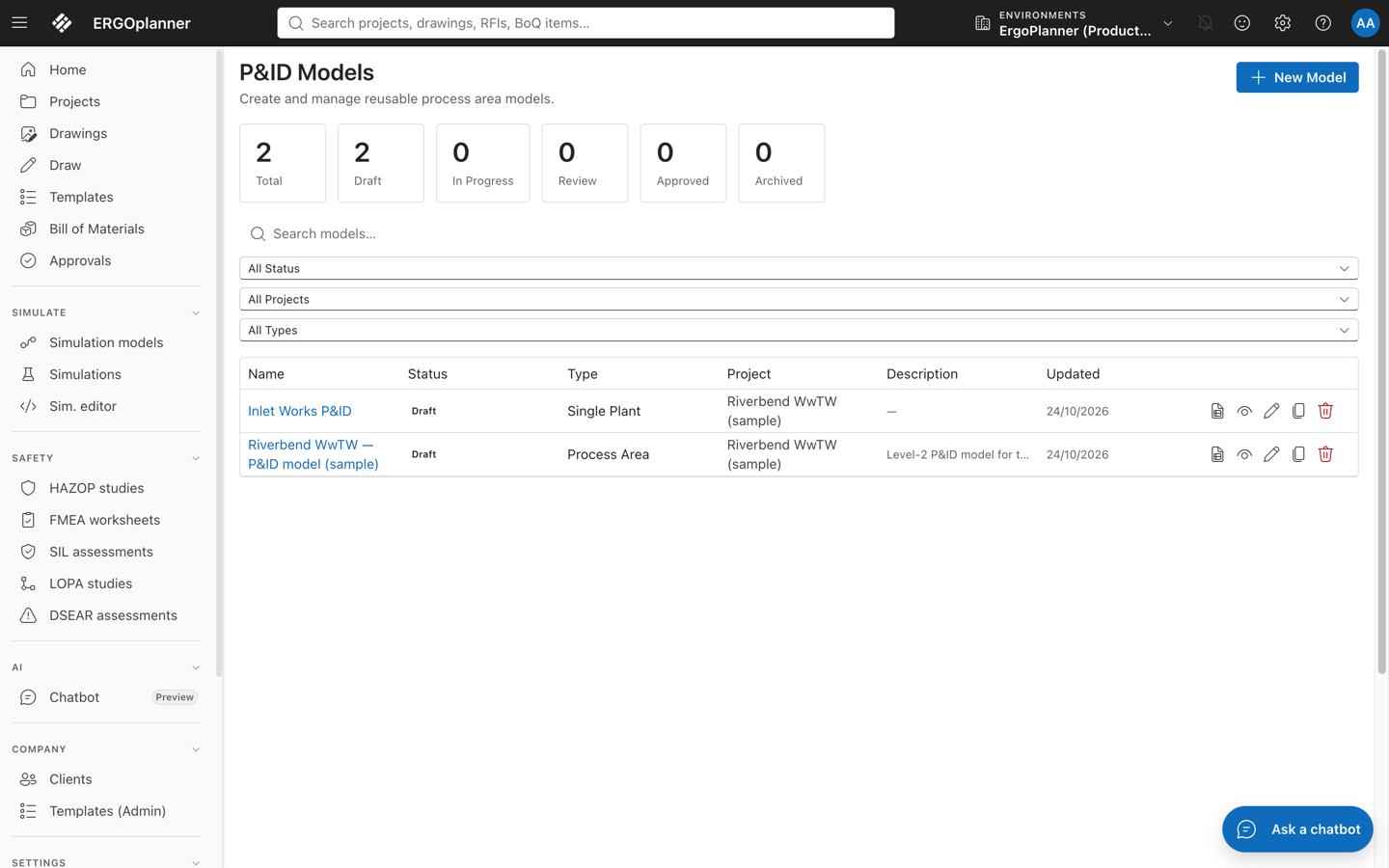
The Drawing Register page opens with a Back to Editor button and one row per process-area drawing:
| Column | What it shows |
|---|---|
| Sheet # | The sheet number, or — if it has none |
| Drawing Title | The drawing's name |
| Rev | Its revision letter |
| Status | Its suitability code as a coloured badge |
| Last Frozen | When a revision was last captured |
| Dirty | Whether it has changes since that freeze |
| Revisions | How many revisions it has |
Clicking a row opens that drawing in the model editor.

A drawing with no area views has no register. If the page says "No area views found. Create area views in the editor to populate the register", go back into the editor and create the process-area views first.
Status codes
Status codes follow the BS 1192 suitability scheme, the same codes the Draw page's drawing metadata uses. The register colours them so you can read a whole model at a glance:
| Code | Meaning |
|---|---|
| S0 | Work in progress |
| S1 | Shared for coordination |
| S2 | Shared for information |
| S3 | Shared for review & comment |
| S4 | Shared for stage approval |
| A | Authorised & accepted |
| AB | As built |
The full code list, including the D series (suitable for costing / tender / contractor design / manufacture), is in Creating a Drawing.
Step 2 — Freeze the revisions you are issuing
A freeze captures an immutable snapshot of a drawing at this moment. The model itself keeps evolving; the snapshot does not. That is what makes a snapshot safe to issue.
- Tick the drawings you are issuing. Use the checkbox in the header row to select or deselect all.
- Two buttons appear in the header once something is selected. Click Freeze Selected (n).
- While it runs the button reads Freezing…
Each frozen drawing's Last Frozen updates and its Dirty flag clears.
When a freeze is refused
A freeze can be refused per drawing, and the page tells you which one and why rather than failing silently. The two refusals you will meet are:
- a drawing with no elements in its area — the view's frame is empty, so there is nothing to snapshot;
- a drawing whose data could not be parsed.
The refused rows are badged Freeze refused and the message names them. Fix those drawings and freeze again; the ones that succeeded stay frozen.
If the failure is a server or network problem rather than a refusal, the message is the generic "Batch freeze failed" — that is not a per-drawing verdict, and retrying is reasonable.
Step 3 — Create the transmittal
With the drawings still selected, click Create Transmittal (n). A four-step wizard opens, titled Create Transmittal.
| Step | What you do |
|---|---|
| 1. Review Drawings | Confirm the selected drawings, each with its title, revision and status. |
| 2. Recipients | Add one row per recipient: Name, Company, Email, Role. Rows can be removed. |
| 3. Details | Transmittal Number (required, e.g. TX-001) and an optional Cover Message. |
| 4. Confirm | A summary — the drawing count, the recipient count, then both lists in full. |
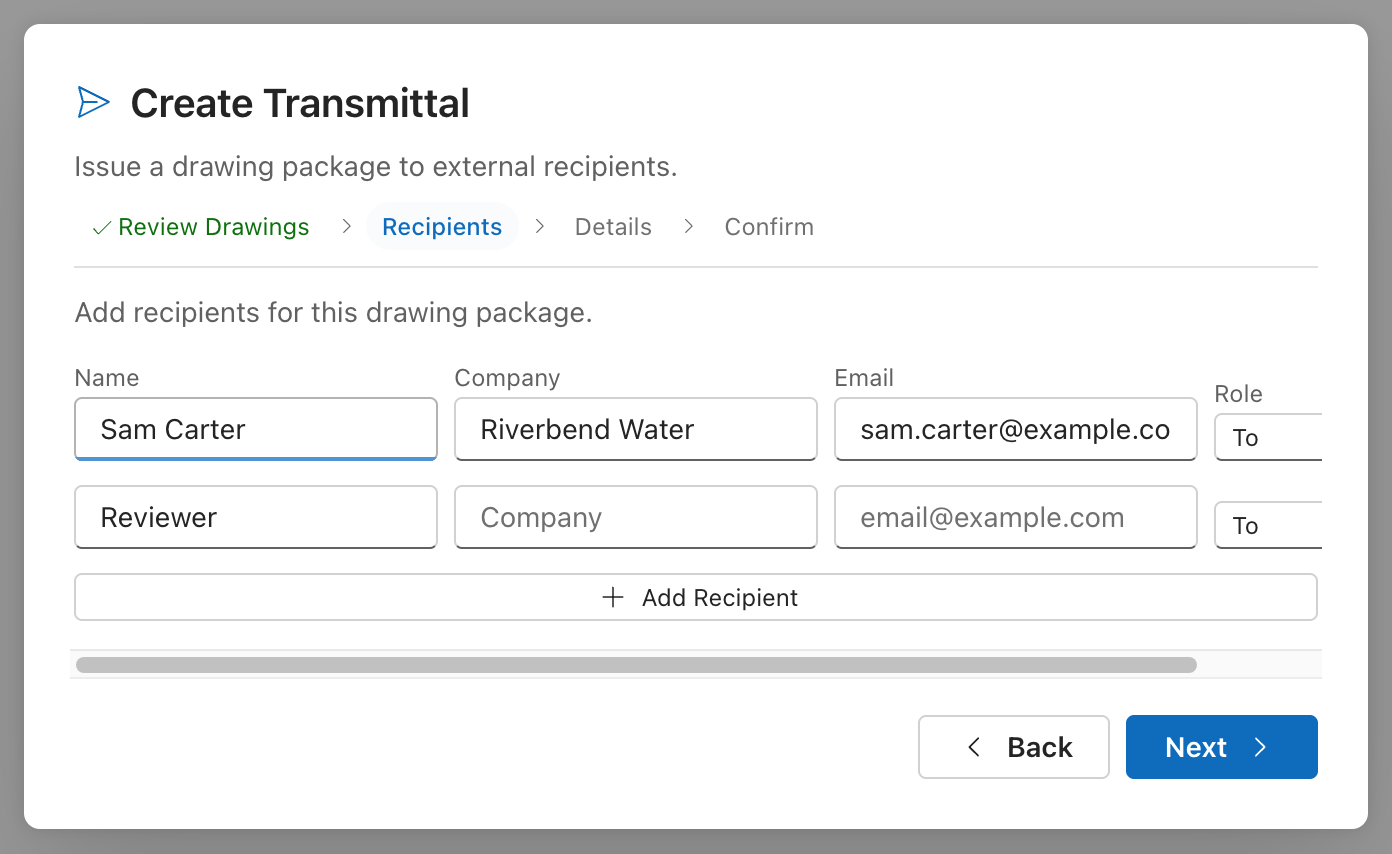
Click Create Transmittal on the last step. While it submits the button reads Creating…
The Create Transmittal button is disabled until the register knows the model's project, because a transmittal belongs to a project. If it is greyed out, the model has no project set.
Step 4 — Track what you sent
Open Documents (/admin/documents) and switch to the Transmittals tab, or go straight to a transmittal's own page. Each transmittal keeps its documents, its recipients, its details and its status.
The same page also lets you build a transmittal the other way round — from documents rather than from register rows. That dialog is also called Create Transmittal, and it steps through selecting documents (name, number, revision, type), adding recipients (Name, Email, Company, Role), and then details (Title, Description, Reason / Purpose, Due Date, Cover Letter Message) with an edit-back review at the end.
Issuing equipment datasheets
On a draft transmittal's page, the Items tab has an Item kind list. Choose Datasheet, pick the Drawing it was generated for, then pick the datasheet by tag (for example P-101 — Centrifugal pump (rev2)) and click Add item. Only datasheets with a generated PDF are listed; generate them first from Tools → Equipment Datasheets… → Generate all. When the transmittal is built, the datasheet's PDF goes into the package, and the share link lists it with its revision. A datasheet is regenerated in place, so the package carries the revision current when the package was built.
Use whichever matches what you are issuing: the register wizard for a drawing package, the documents dialog for a mixed document pack.
Issuing from the Draw page instead
If your drawing lives on the Draw page, issue it with Issue (see which editor you are in). Alongside the issued revisions, Draw keeps its own save history:
- File → Version history… lists earlier saved versions.
- Export register in the version-history panel downloads the full revision audit trail as CSV — one row per revision with its id, name, type (Auto or Named), author, UTC timestamp and comment, newest first. This is the file to attach when somebody asks what changed and when.
- File → Export as JSON exports the drawing itself.
- The Export buttons in the ribbon's Import / Export group produce PNG, PDF and SVG.
See A Revision Cycle for comparing two versions.
Things worth knowing
- Freeze is batch-only today. The per-drawing Freeze Drawing…, View History, Advance Status and Drawing Properties… items exist in the view-tab right-click menu's code but are not wired up in the shipped model editor, so they do not appear. The register's Freeze Selected is the route — select one row if you only want one drawing.
- The model is never frozen, only its drawings' snapshots. Freezing does not lock the model against further editing.
- Dirty means "changed since the last freeze". A drawing can be frozen and dirty at once; that is the normal mid-revision state, and the company-wide register counts it under Unsaved changes.
- The register is per model. The company-wide Drawing register on the sidebar is for reading across projects — it has a model filter and a drawing search, but no freeze or transmittal actions.
See also
- Running a Design Review — getting a drawing reviewed before you issue it
- A Revision Cycle — Rev A → Rev B and the project stage gate
- Starting a Workflow — putting an approval step in somebody's queue
- Creating a Drawing — the status and discipline codes