Appearance
Bill of Materials
Generating, reviewing, and exporting a Bill of Materials from an ErgoPlanner drawing.
Last verified: 2026-10-24 Status: Current
Every drawing in ErgoPlanner has a Bill of Materials (BOM). A BOM is created automatically when you create a drawing and stays in sync each time you save — you do not need to do anything to get one. The sections below explain how to open, review, force-refresh, and export it.
How the BOM is kept in sync
When you create a drawing, ErgoPlanner generates an initial BOM from any symbols already on the canvas. Each time you save the drawing (manually with Ctrl+S or via autosave) the BOM is updated to reflect the current set of placed symbols. A "BOM updated" notification appears in the canvas header when the sync completes.
The BoM pages catch up on their own. After a save (in this tab or another), a tag rename or a model save, the open BoM refetches without a manual reload: the detail page checks the BoM's header every 15 seconds while the tab is visible and reloads the lines when its version, update time or total changes, and the list refreshes every 30 seconds. Other tabs of the same browser are told about a save straight away.
If you want to trigger a sync outside the normal save cycle — for example after an import or bulk edit — use Generate BOM (see below).
Opening the BOM for a drawing
From the Drawings page:
- Navigate to the Drawings page.
- Find the drawing row and click the BOM icon (document-table icon) in the row's action toolbar.
- ErgoPlanner runs a fresh sync and then opens the BOM detail view.
From the BOM list:
- Open Bill of Materials from the sidebar (or navigate to
/admin/bom). - The list shows all BOMs for your company, with a Drawing column naming the drawing each BOM was generated from. Filter by project or status using the dropdowns, or search by project name or item code.
- Click any row to open the detail view for that BOM.
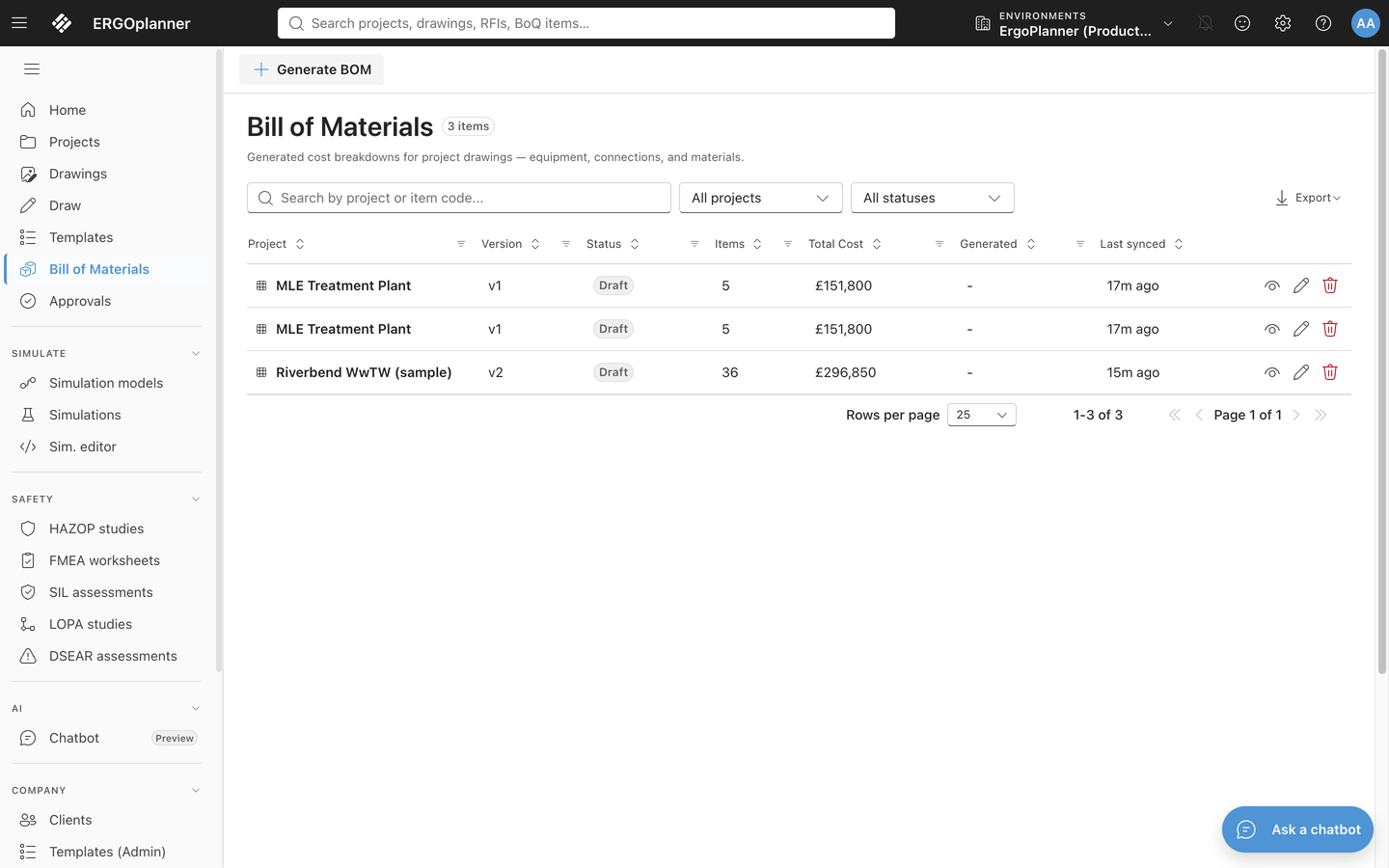
The BOM detail view
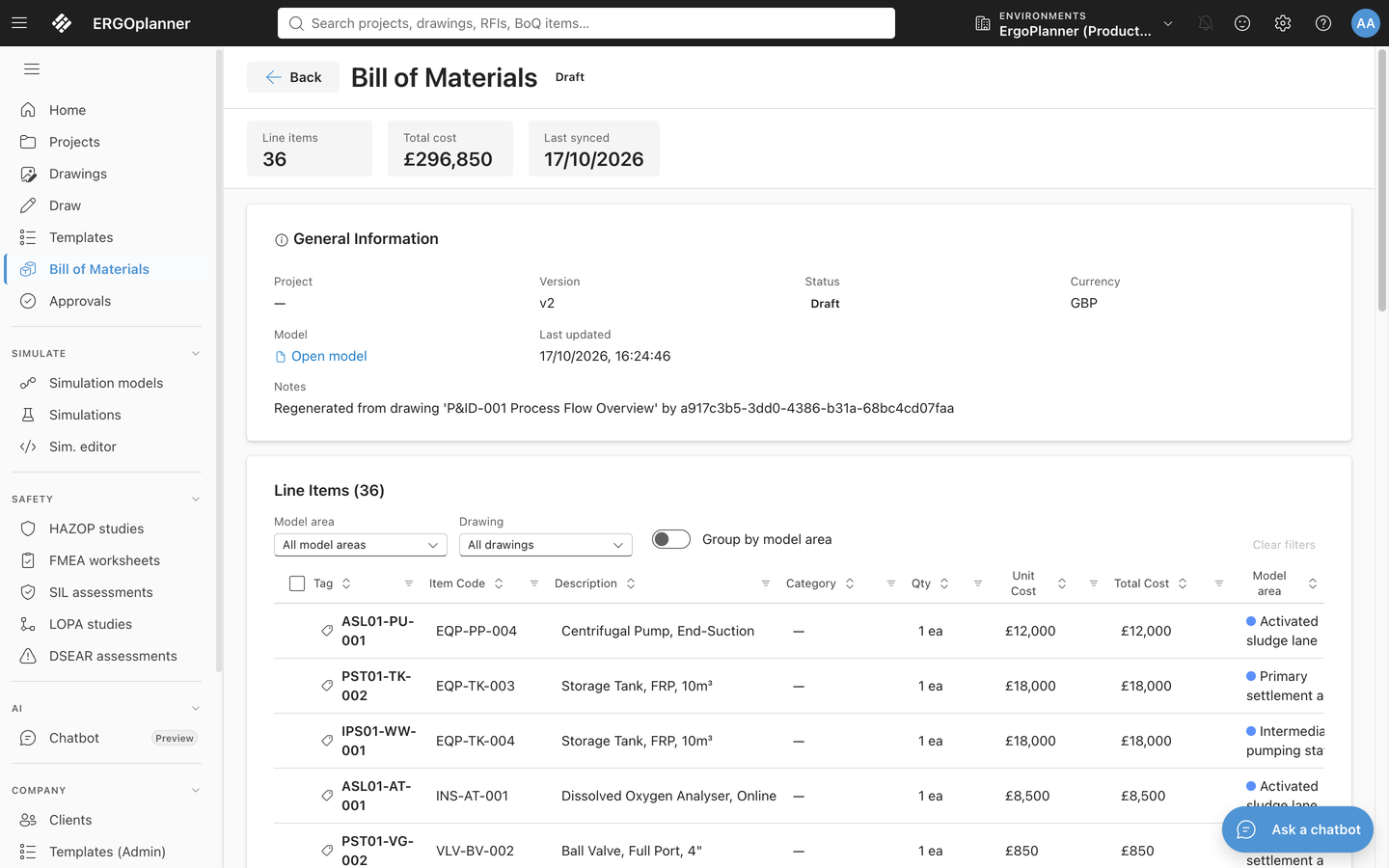
The detail view (/admin/bom/:id) shows:
| Section | What it contains |
|---|---|
| Stat cards | Line-item count, Gross total, Procurement total, the number of categories, and when the BOM was last synced. See Asset status. |
| General Information | The project's name, BOM version, status (Draft / Approved / Rejected), currency, a link to the model the BOM came from, the last-updated timestamp, and a note recording which drawing it was generated from and by whom (by name, not by account id). |
| Filters | A Model area, a Drawing and an Asset status dropdown, a Group by dropdown (no grouping, model area, or asset status), and Clear filters. |
| Line items table | One row per placed symbol and one row per drawn pipe: tag, item code, description, category, quantity, unit cost, line total, model area, asset status, drawing, tags, records and status. The card header counts the lines in each asset status. |
You can edit or delete individual line items directly in this view. Changes are saved immediately.
Asset status
Every line item has an asset status. It tells you whether the project buys the item or already has it. This matters on brownfield and retrofit work.
| Asset status | Badge | Meaning | In the procurement total? |
|---|---|---|---|
| New | Brand (blue) | New equipment or material that the project buys and installs. | Yes |
| Existing — Modified | Warning (amber) | An existing asset that the project modifies. The modification is bought work. | Yes |
| Existing — Retained | Informative | An existing asset that the project keeps unchanged. | No |
| To be removed | Danger (red) | An existing asset that the project removes. | No |
- Gross total counts every line, whatever its asset status. It is the same figure the BOM always showed.
- Procurement total counts only New and Existing — Modified lines. It is worked out from the line items as they are now, so it changes as soon as you change a line's asset status.
- The procurement schedule also leaves out Existing — Retained and To be removed lines.
Where the status comes from. When the BOM syncs, it reads the status from the drawing:
- For a symbol, from its
assetStatusproperty. These values are accepted:existing-retained,existing-modified,to-be-removedorremoved. Case and separators are ignored. Any other value, or no value, reads as New. - For a pipe, from its line type. A pipe drawn with the Existing Retained line type reads as Existing — Retained. Every other line type reads as New. There is no line type for modified or removed pipework. To give a pipe one of those statuses, set it on the line item.
Setting it by hand. Open a line item and change Asset status in its edit form. A status you choose is kept when the BOM syncs again, even if the drawing says something different. To let the drawing decide again, choose Derived from drawing.
Valves
Each valve type maps to its own catalogue item, so a gate valve is priced and listed as a gate valve rather than as a generic on-off valve: gate (VLV-GV), globe (VLV-GL), ball (VLV-BV), butterfly (VLV-BF) and check valves (VLV-CK, which includes the ball-check type).
Pipe lines
Each connection you draw gets its own BOM line, measured in metres:
- Tag shows the line tag you gave the pipe. A pipe with no line tag still gets a line.
- Description shows the tag, the line type, the size (DN) and the material, for example
100-P-001 — Process Major line, DN100, CS. If the pipe has no tag, the tag is left out. - Quantity is the length of that pipe. The unit cost is the per-metre rate for the line's item code from your rate card or material catalogue.
Pipe lines stay linked to the pipe that produced them. When the BOM syncs again:
- If you change a pipe's length or tag, its existing line is updated. You do not get a duplicate.
- A quantity or cost you entered by hand (a manual override) is kept.
- A pipe line you deleted stays deleted.
BOMs created before this change pooled all piping into a single "BULK" line for each pipe type. On the next sync, the per-pipe lines replace that pooled line. If records are attached to the old line, it is kept as unlinked so you do not lose them.
The Bill of Materials dialog in Draw
The BOM button in the Draw toolbar (also File → Bill of Materials) opens the same lines inside the editor, for the drawing you have open. It lists every equipment symbol and every connection in a table:
- Search and inline filters on one row: kind, type, drawing and asset status, plus per-column sort and filter. Lines without a tag sort after tagged ones.
- Checkbox multiselect with bulk actions: set the asset status of the selected equipment, or delete the selected elements from the drawing (after a confirmation).
- An Actions column: Open item (the line's page in the BoQ, available once the line exists after a save), Locate on drawing (closes the dialog, switches to the right sheet, frames and selects the element), and a ⋯ menu with Copy tag, Set asset status and Delete from drawing.
- A Columns menu to show or hide the secondary columns (columns empty for the whole drawing are hidden by default), plus Refresh, Export and Import.
- A compact pager at the foot (25 rows per page by default).
Generating a BOM manually (force refresh)
If you need to regenerate the BOM without saving the drawing — for instance to pick up changes from a bulk template operation — use Generate BOM:
- Go to the BOM list at
/admin/bom. - Click Generate BOM in the command bar.
- In the dialog, select the drawing you want to regenerate from and click Generate.
- The new BOM replaces the previous version for that drawing. A toast confirms how many line items were produced.
The same action is available from the Drawings page via the BOM icon in each row's toolbar.
BOM statuses
| Status | Meaning |
|---|---|
| Draft | Generated but not yet reviewed. |
| Approved | Accepted by a reviewer. |
| Rejected | Returned for correction. |
Status can be changed from the BOM detail view header.
Exporting
From the BOM list:
- Open the Export menu in the toolbar and pick CSV, Excel or PDF. The export covers the BOMs currently visible, so set the search and the project/status filters first.
From the BOM detail view:
- Line items can be copied from the table for use in external tools.
The BOM's CSV, Excel and PDF documents all show asset status in the same way. These are the Excel and PDF files a transmittal package includes, and the CSV, Excel and PDF files the BoQ assistant produces. Each one has:
- an Asset status column on every line;
- a By asset status block. It gives the number of lines and the total cost for each of the four statuses, then a Gross total (all statuses) row and a Procurement total (New + Existing - Modified) row;
- a Procurement grand total next to the grand total in the cost summary.
The documents use a plain hyphen in the labels, for example Existing - Retained, so that every spreadsheet tool reads them the same way.
Where to go next
- Drawing and Connecting — add or remove symbols on a drawing
- Drawings page overview — the drawing list and toolbar