Appearance
Finding Things
The search box in the top bar
Where it is
The search box sits in the top bar, between the app launcher and your account menu, on every screen except the phone-width layout (where it moves into the overflow menu).
What it searches
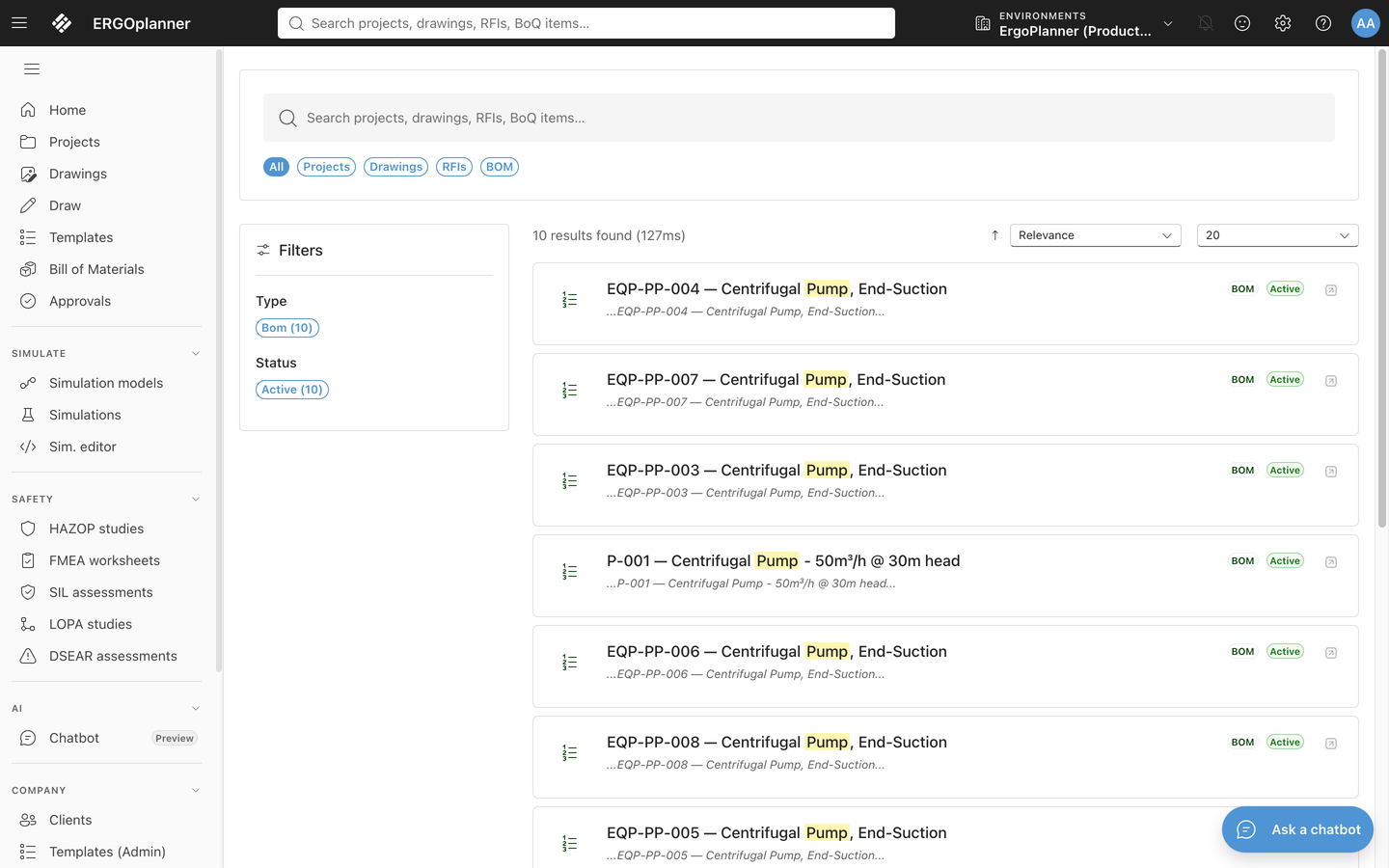
Type a term and press Enter to open the search results page. It searches:
| Scope | Matches on |
|---|---|
| Projects | Project name, project number, client |
| Drawings | Drawing name, title, drawing number |
| RFIs | Subject, RFI number |
| BoQ items | Description, item code, tag number |
Results link straight to the record — a project opens its detail page, a drawing opens in the editor, an RFI opens its detail page, and a BoQ item opens its asset page.
On the results page you can narrow the search to one of the scopes above, sort by relevance/recently updated/recently created/title, and filter by any facet (type, status, project) the results turn up.
What it does not search
Documents, submittals, meetings, and equipment/reference-data records are not part of search. Each has a real, filterable list — Documents, Submittals, Meetings, and Reference Data in the sidebar — but none of those pages can open one record on its own the way a project, drawing, RFI, or BoQ item can; there is no /admin/meetings/:id or equivalent to land a search result on. A scope is only offered once there is somewhere for a result to go, so these four stay off the list until they get one. Use the dedicated list pages for those instead.
Tips
- Two characters is the minimum — shorter terms return nothing.
- The box itself does not search as you type; it only submits on Enter, so a half-typed word never fires a request.
- You can also open the results page directly with a URL like
/search?q=pump&scope=drawings— useful for bookmarking a saved search.