Appearance
Draw Page Overview
The Draw page is ErgoPlanner's P&ID editor — draw process diagrams from scratch, or import a scanned P&ID image and let AI recognition turn it into an editable drawing.
What the Draw page does
The Draw page is where you author Piping & Instrumentation Diagrams (P&IDs):
- Draw from scratch — place symbols from a stencil library, connect them with pipelines and signal lines, and annotate with text and shapes.
- Import a CAD drawing — bring in a DXF or a DWG and have its blocks mapped to library symbols. See Importing a CAD Drawing.
- Import a P&ID — bring in a scanned drawing as a PNG/JPEG image and run AI symbol recognition to convert it into native, editable elements. See Importing a P&ID.
- Manage drawing metadata — drawing number, revision, suitability status, discipline and sign-off fields. See Creating a Drawing.
- Derive engineering deliverables — from Tools: the I/O list and the control philosophy skeleton, both read from the drawing as last saved.
Opening the Draw page
Open the Draw page from the main navigation. What you see depends on whether a drawing is open:
- With a drawing open, the editor loads that drawing on the canvas.
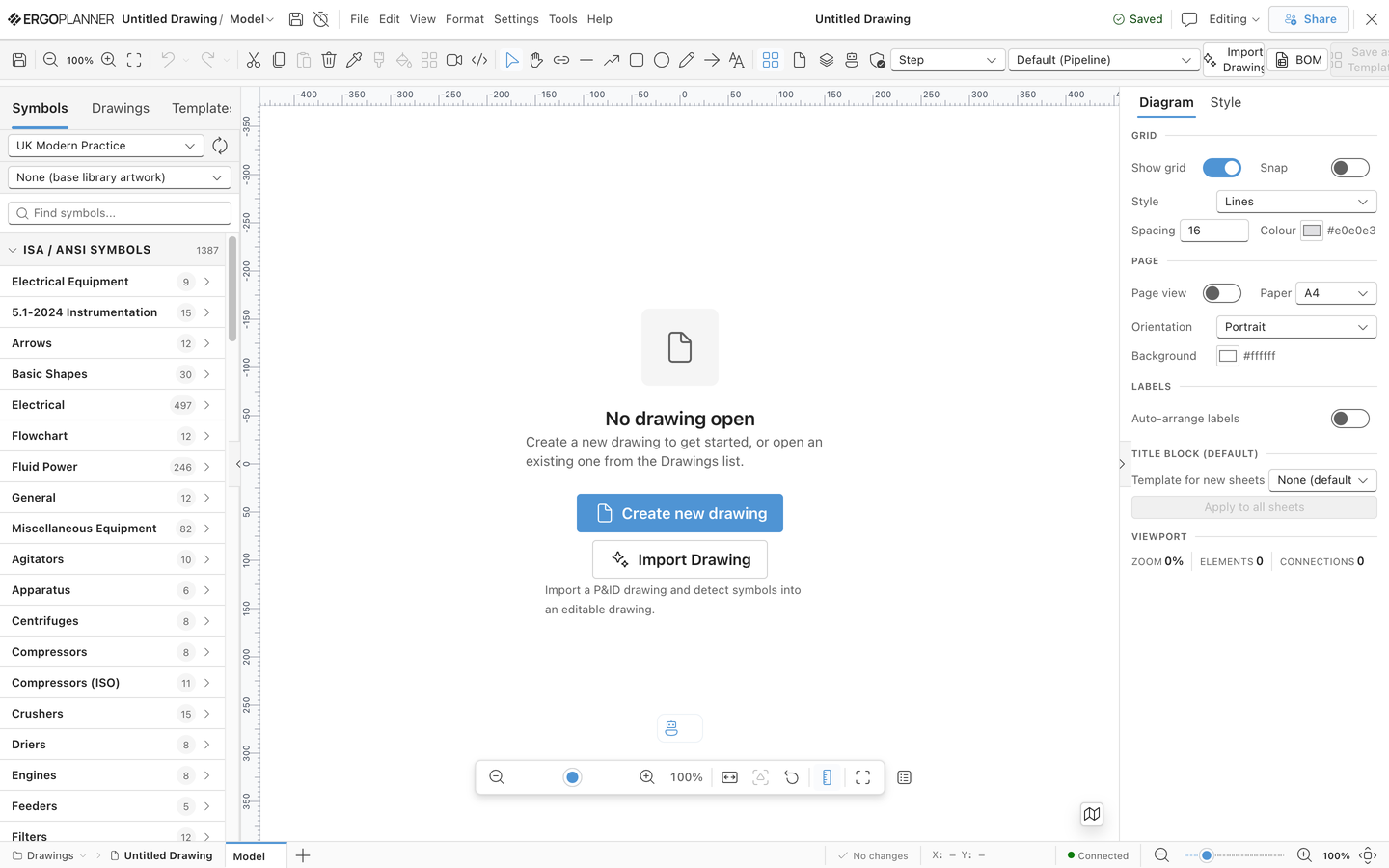
- With no drawing open, you see the "No drawing open" screen with two actions:
- Create new drawing — opens the create dialog (Creating a Drawing).
- Import Drawing — pick a P&ID image and detect symbols into an editable drawing (Importing a P&ID).
You can also open an existing drawing from the Drawings list (File → Drawing Manager).
Layout tour
Menu bar (top)
The menu bar hosts the classic menus — File, Edit, View, Format, Settings, Tools and Help — plus a quick Save button and an autosave toggle. The File menu is where you create, open, save, export and import drawings, open the Drawing Manager, load sample drawings, and reach the Bill of Materials and Drawing Properties.
Toolbar (below the menu bar)
The toolbar is a collapsible ribbon that stays on one row. In its compact form it shows, left to right:
- Save, zoom controls (Zoom Out / current % / Zoom In / Fit View)
- Undo / Redo (split buttons — undo or redo several steps at once)
- Cut / Copy / Paste / Delete, Format Painter, and a Template button (create a template from the selection)
- Drawing tools — Select (V), Pan (H), Connector (K), Line (L), Polyline (P), Rectangle (R), Ellipse (E), Freehand (F), Arrow Line, Text (T)
- Grid options, Page setup, Layers, AI Assistant, Validation
- The edge routing and Line Type dropdowns (pipeline / signal line styles)
- The Import button — starts the import-and-recognise workflow — and the BOM button, which opens the in-Draw Bill of Materials
- Expand Ribbon — switches to the full ribbon with grouped tools (Arrange, Import/Export, Pipeline Tools and more)
When the window is too narrow for the whole row, the lowest-priority controls move into a More menu at the right end instead of scrolling. Save, Undo/Redo, the main drawing tools, the grid and page popovers, Import, BOM, Template and Expand Ribbon stay on the bar; the edge routing and Line Type fields, Validation, Text, clipboard and zoom collapse last-to-first into the menu, keeping their icon, label and tooltip (the two fields become radio submenus). Hover the edge routing and Line Type fields for a tooltip explaining each.
Labelled buttons use one short word (Import, BOM, Template, Paste and so on) so the row does not wrap. Every button has a tooltip: hover or focus it for the full name, the shortcut and a few words on what it does.
Stencil sidebar (left)
The symbol library. Type into "Find symbols..." to search, browse categories grouped by drawing standard, and re-use recently placed symbols from the Recent section. Drag a symbol onto the canvas — or click it to place it at the centre of the view. See Drawing and Connecting.
Canvas (centre)
The drawing sheet. Core interactions:
- Zoom — mouse wheel (works over a background image too).
- Pan — the Pan tool (H, hand cursor), or hold Space and drag with any tool active.
- Select — click an element; drag on empty canvas to marquee-select several.
Navigator (bottom-right of the canvas)
The minimap and the zoom controls share one floating panel, the navigator. It sits at the bottom-right of the canvas, outside the sheet when the sheet is fitted, so it does not cover the title block.
- Minimap — shows the sheet frame and its pipework, so you can see where the viewport sits on the sheet. Fit all keeps the sheet clear of the navigator.
- Zoom row — zoom out, the current zoom percentage, zoom in, Fit all, and a ⋯ menu. Click the percentage for a slider and the presets 25 / 50 / 100 / 200 %, plus Fit width and Fit selection.
- ⋯ menu — Reset view (100%), show or hide the rulers, full screen, and Auto-arrange labels (also Alt+L).
- Navigator options (the ⋯ on the panel's title strip) — show or hide the minimap itself, and Reset position.
- Move it — drag the grip handle, or focus the handle and use the arrow keys (hold Shift for bigger steps). It stays inside the canvas.
- Hide it — the map button collapses the whole panel to that single button; click it again to bring the panel back.
Its position, collapsed state and minimap visibility are remembered per browser profile.
Sheets (footer tabs)
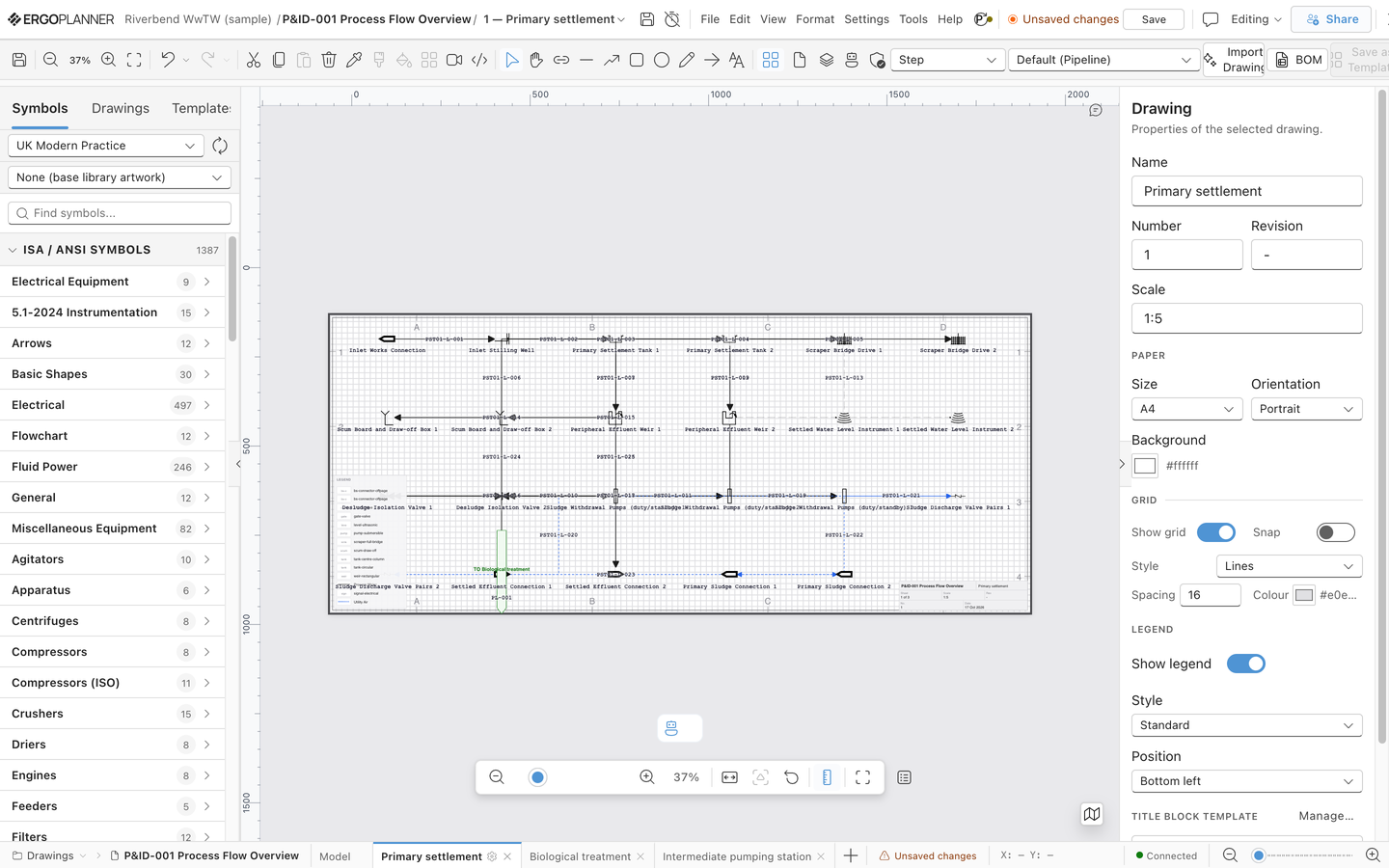
A drawing's model space is infinite; a sheet is a bounded page over it, with its own paper size, scale and title block. Sheets appear as tabs in the footer, alongside a Model tab that shows everything unfiltered. Click + to add a sheet, double-click a tab to rename it, and drag tabs to reorder them.

Drawings created before sheets existed migrate automatically the first time they're opened — a Sheet 1 is created over the existing content, and any older sheet records are brought in alongside it. This migration runs once per drawing: if two people happen to open the same not-yet-migrated drawing at the same moment, both land on the same sheets rather than each getting their own duplicate copies.
Right properties panel
Shows properties for whatever is selected: sheet properties when nothing is selected, element properties for a selected symbol or line, and the Background image properties when the reference raster is selected (Background Images).
Floating panels
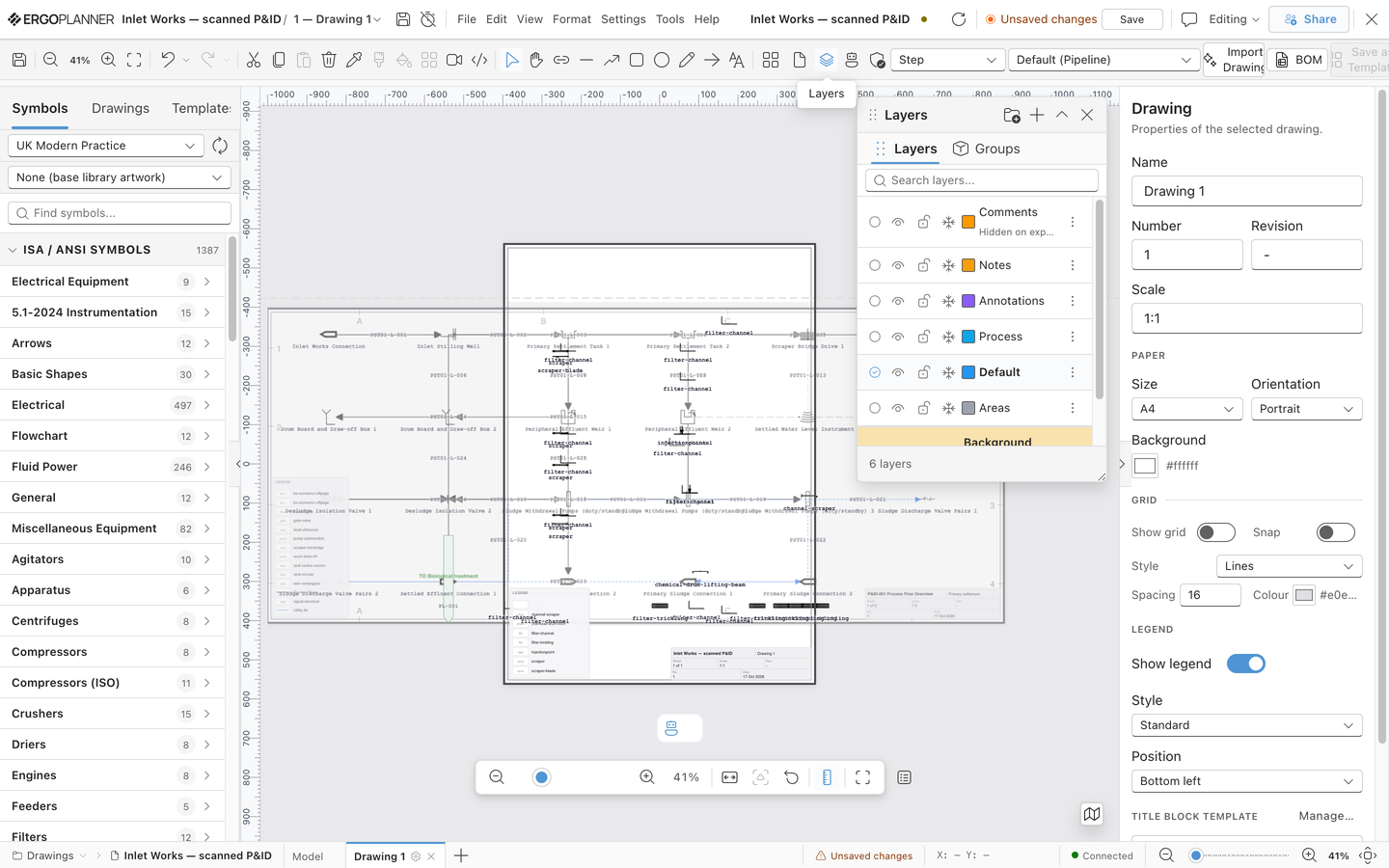
Some tools open as floating windows over the canvas — the Recognize (AI) panel, Layers, Hotspots and others. Drag them by the header, resize from the bottom-right corner, and collapse or close them from the header buttons.
Where to next
- New drawing from scratch → Creating a Drawing, then Drawing and Connecting
- Numbering and de-duplicating equipment tags → Tag Numbering and Conflicts
- An existing DXF or DWG → Importing a CAD Drawing
- Digitising an existing P&ID → Importing a P&ID
- Issuing an I/O list or a control philosophy → I/O List, Control Philosophy
- Before you change something → What Does a Change Affect?
- Something not behaving? → Tips and Troubleshooting