Appearance
Background Images
The reference raster: the imported P&ID image (or any reference image) that sits behind your drawing. How to move, resize, fade, lock and remove it.
What the background image is
When you import a P&ID — or add a reference image from the ribbon's Import/Export group (Reference Image) — the picture is placed centred on the sheet as a dedicated background layer. It is not a drawing element: it renders behind everything, and recognition and manual tracing both work on top of it.
Sizes on the sheet are real-world millimetres: at 100% scale, one image pixel equals one millimetre.
Selecting the image
The image must be unlocked and unfrozen to be selectable (see below). Then either:
- click it on the canvas, or
- open the Layer panel (Layers button in the toolbar) and click the Background Image row's name — the row reads "Selected — drag to move, corners to resize" when active.
Once selected, drag the image to move it and drag its corner handles to resize. Mouse-wheel zoom keeps working over the image.
The Background image properties panel
With the image selected, the right panel shows Background image properties:
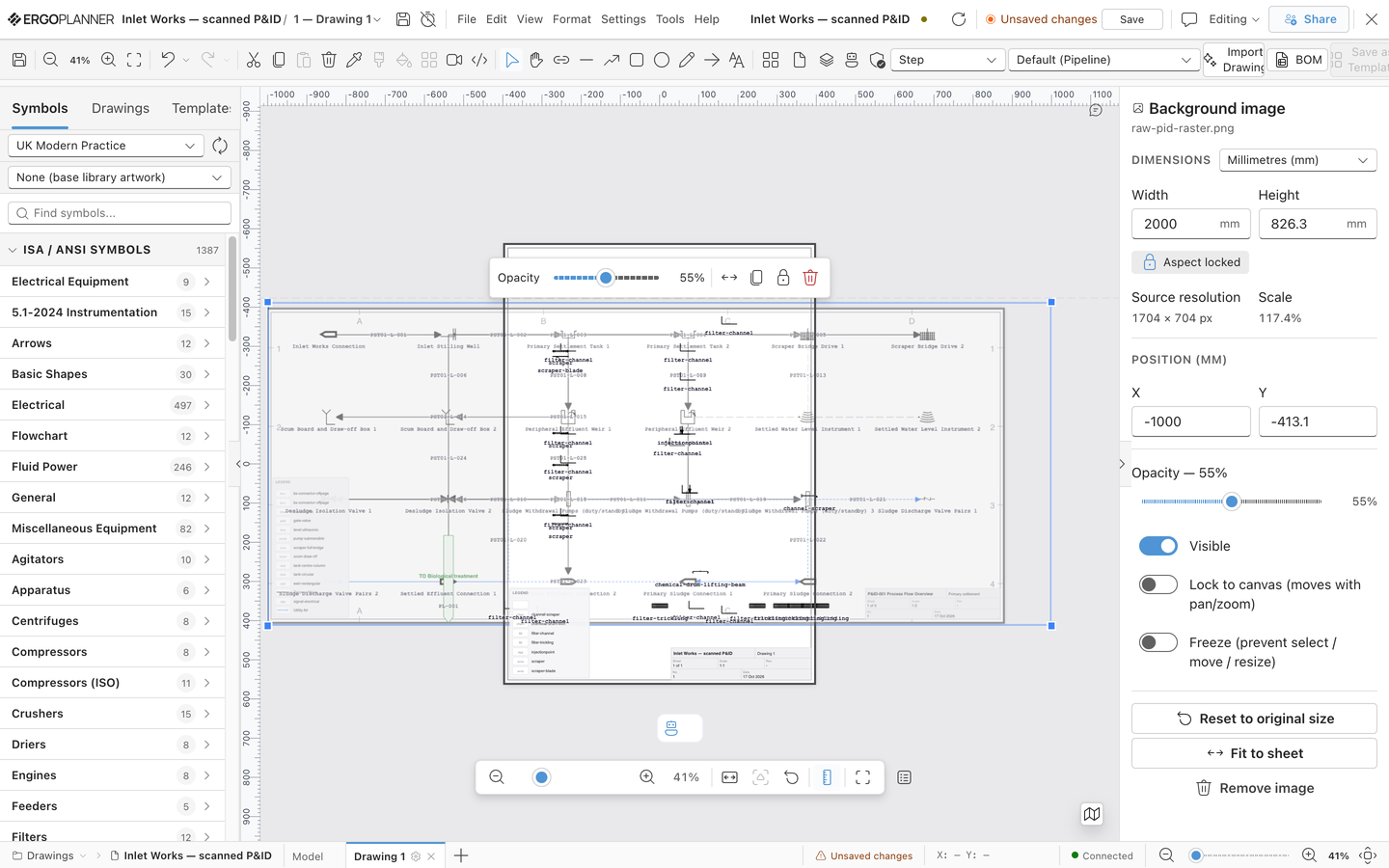
Dimensions
- Unit dropdown — switch every length field between Millimetres (mm), Centimetres (cm) and Inches (in).
- Width / Height — the image's size on the sheet, in the chosen unit.
- Aspect locked / Aspect unlocked — the padlock toggle beneath the size fields. Locked (default), editing width or height keeps the proportions; unlocked, each axis scales independently.
- Source resolution and Scale — read-only: the image's pixel dimensions and the current scale percentage.
Position
X / Y — the image's position on the sheet, in the chosen unit.
Appearance
- Opacity — a slider from 10–100%. Fade the raster so your placed symbols stand out over it.
- Visible — show or hide the image without removing it.
- Lock to canvas (moves with pan/zoom) — pins the image to the sheet so it cannot be dragged independently.
- Freeze (prevent select / move / resize) — makes the image completely inert: it cannot be selected, moved or resized until unfrozen. Freeze it once it is positioned correctly, so tracing clicks never grab the raster by accident.
Actions
- Reset to original size — restores the size the image was imported at, uniform and re-centred.
- Fit to sheet — scales the image to fit the drawing sheet.
- Remove image — deletes the background image (with confirmation from the Layer panel).
The Layer panel row
The Layer panel shows a highlighted Background Image row whenever a raster is loaded, with quick toggles:
| Control | Action |
|---|---|
| Eye | Show / hide the image |
| Padlock | Lock / unlock to canvas |
| Snowflake | Freeze / unfreeze (tinted when frozen) |
| Name | Click to select the image for moving/resizing (tooltip explains if it is locked or frozen: "Unlock and unfreeze to select") |
| Bin | Remove the image (asks for confirmation) |
Reference overlay: PDF or image with a two-point scale
For brownfield work with no CAD source, Insert → Reference image… (or Trace over a scan instead… in the CAD import dialog) puts a scan behind the drawing to trace over.
- Drop a PDF, PNG, JPG or WebP. For a PDF, choose the page and press Load page; the page is rendered in your browser.
- Under Scale Mode choose Two known points, click two points on the preview whose real distance you know (two nozzles, a dimensioned run) and enter that distance in millimetres. The image is scaled so the two points are exactly that far apart.
- Set Opacity, leave Lock to canvas on once aligned, then Apply Background.
The overlay is not a symbol, so it never appears in the Bill of Materials. It is stored with the drawing (one reference image per drawing; a new one replaces it), so it is still there after a reload. If the upload fails, an error message shows the reason and the image will not survive a reload; the overlay stays visible for this session and you can apply it again.
Placement is saved
The image's position, size, opacity and lock/freeze state are saved with the drawing — reopening the drawing restores the raster exactly where you left it.