Appearance
Reviewing Recognition Results
After a recognition run, the Recognize (AI) panel's Review tab is where you curate the results: a Model suggestions section (agent proposals you accept or reject one by one) sits above the hotspot grid (every detected hotspot, with bulk actions and Place all).
The Review tab
The Review tab is the working surface after a run — a grid of every recognised hotspot. Open it from the Review & place hotspots button in the success box, or by clicking the tab (its badge shows how many hotspots still need review).
The tab opens with a collapsible Model suggestions section above the grid, carrying the agent's own proposals with Accept / Reject actions. Collapse it with the chevron to put the grid in full view.
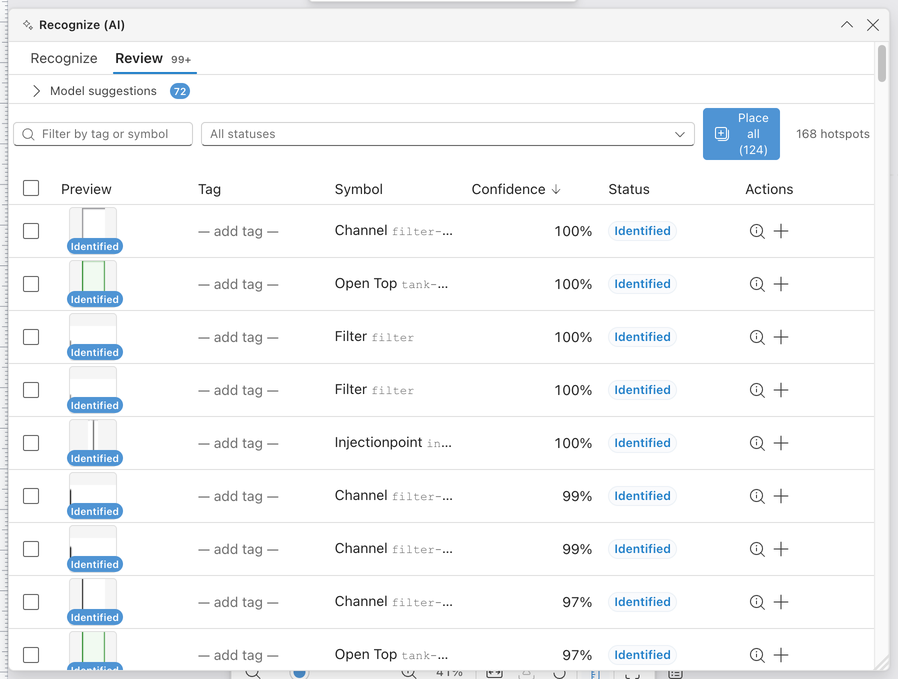
Grid columns
| Column | Contents |
|---|---|
| Preview | A thumbnail cropped from the imported image — what the detector actually saw. |
| Tag | The equipment tag. Editable inline — click to correct it. |
| Symbol | The assigned stencil symbol (display name + key). Editable inline — click to pick a different symbol from the stencil catalogue. |
| Confidence | The detector's confidence for this hotspot, as a percentage. |
| Status | A badge: Pending, Identified, Verified, Rejected or Skipped. |
Click a column header (Tag, Symbol, Confidence, Status) to sort; the Preview column is not sortable.
Filtering
The toolbar above the grid offers:
- Filter by tag or symbol — a text search box.
- All statuses — a multi-select status filter (Pending / Identified / Verified / Rejected / Skipped).
- Clear filters — appears while any filter is active.
- A live count on the right — "12 of 48 hotspots" while filtered.
Row actions
- Click a row — selects that hotspot and highlights it on the canvas, so you can see exactly which region of the drawing it refers to.
- Identify hotspot (per-row icon) — opens the Identify view for that hotspot.
- Place (per-row icon) — places that hotspot's assigned symbol on the canvas. Only enabled once the row has a symbol assigned.
Bulk actions
Tick the checkboxes to select multiple rows (the header checkbox selects all visible). A bulk cluster appears showing "n selected" with icon actions:
- Accept / Reject / Skip — set the status of every selected row.
- Delete — remove the selected hotspots from the session.
- Place selected — places every selected row that has an assigned symbol. Its tooltip tells you how many of the selection can be placed and how many are still missing a symbol ("Identify first").
Place all
The Place all (N) button is always visible in the toolbar and places every hotspot in the session that has an assigned symbol — no selection needed. This is the one-click "put everything recognition found onto the canvas" action.
Note on undo: after a bulk place (Place selected or Place all), undo works per symbol — each
Ctrl+Zremoves one placed element, not the whole batch.
The Model suggestions section
Above the grid, the collapsible Model suggestions section hosts Agent Suggestions — proposals the recognition agent is less certain about, offered for explicit human sign-off rather than being placed automatically. Its header carries the pending count, and it is expanded automatically when a fresh run produces suggestions.
For each suggestion:
- Accept — places exactly that suggestion on the canvas (one undo entry each).
- Reject — discards it; nothing is written to the drawing.
- Accept all / Reject all — process the whole list at once.
- Undo place — removes exactly the last accepted suggestion's placed elements.
Grid or suggestions — which to use when?
- Use the hotspot grid as your systematic pass over everything recognition found: sort by confidence, fix tags and symbols inline, bulk-accept the good rows, and place.
- Use Model suggestions to quickly triage the uncertain proposals the agent has queued — a fast accept/reject flow with immediate per-item undo.
Rows that have no symbol assigned yet cannot be placed from either — identify them first: Identifying Hotspots.